
 BEX is my wife's nickname. I started GameBEX to get her into video games.
Getting started
Browse your games, add a ROM site's catalog, and get ready to play.
Use GameBEX to browse your games with a controller and start them in their emulator. Add a source plugin to browse and download from a compatible ROM site too. It ships with no games, BIOS files, or download links. If you haven’t installed it yet, start with Install.
Getting around
Section titled “Getting around”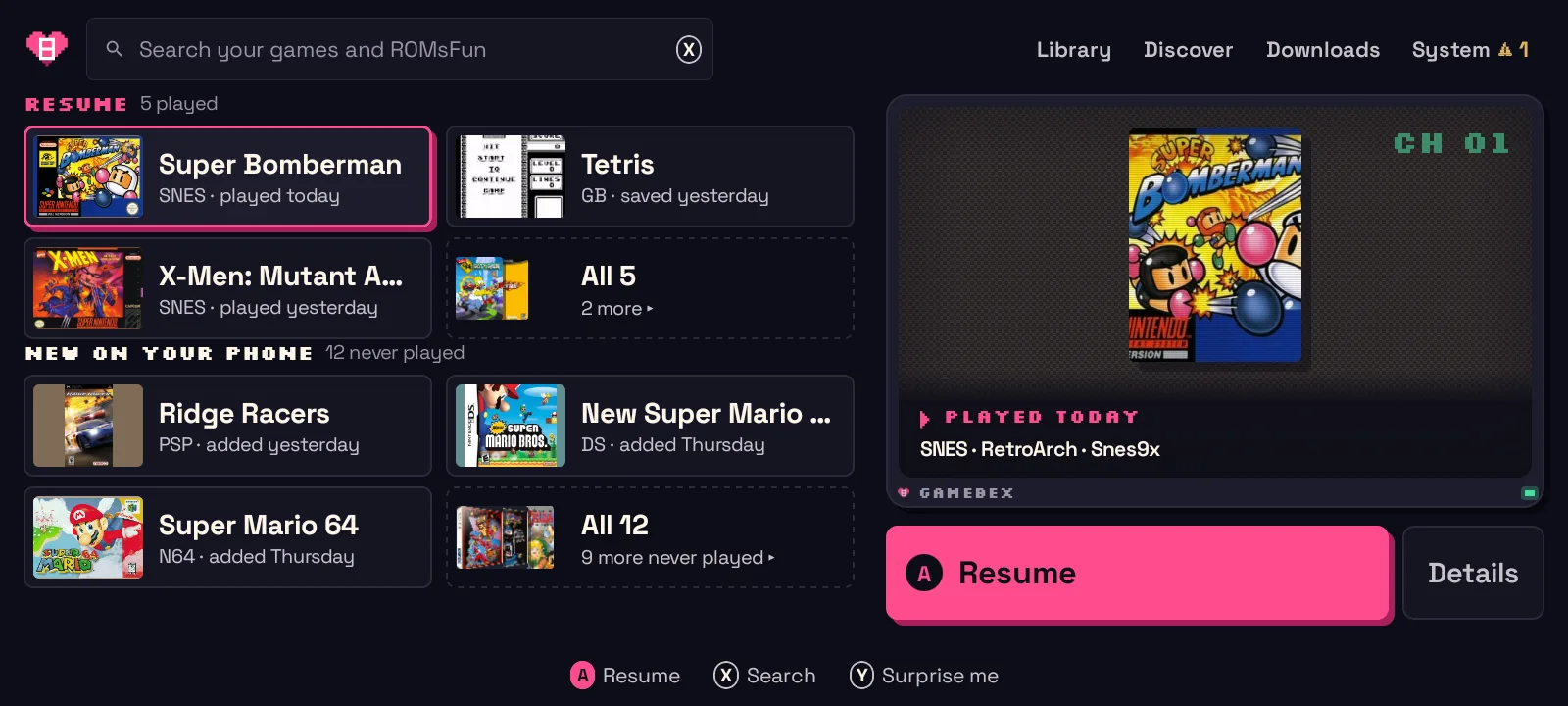
Everything works with a controller: the D-pad moves, the confirm button selects, the back button goes back. The strip at the bottom of the screen always shows which buttons do what on the current screen. The rail on the left has five destinations:
| Screen | What it’s for |
|---|---|
| Home | Continue playing and recently added games |
| Discover | Browse, search, and download from game sources you’ve imported; empty until you add one |
| Library | Every game GameBEX found, grouped by system, with filters |
| Downloads | The download queue and anything still being prepared |
| System | Per-system readiness, emulator installs, and Device settings |
Adding games
Section titled “Adding games”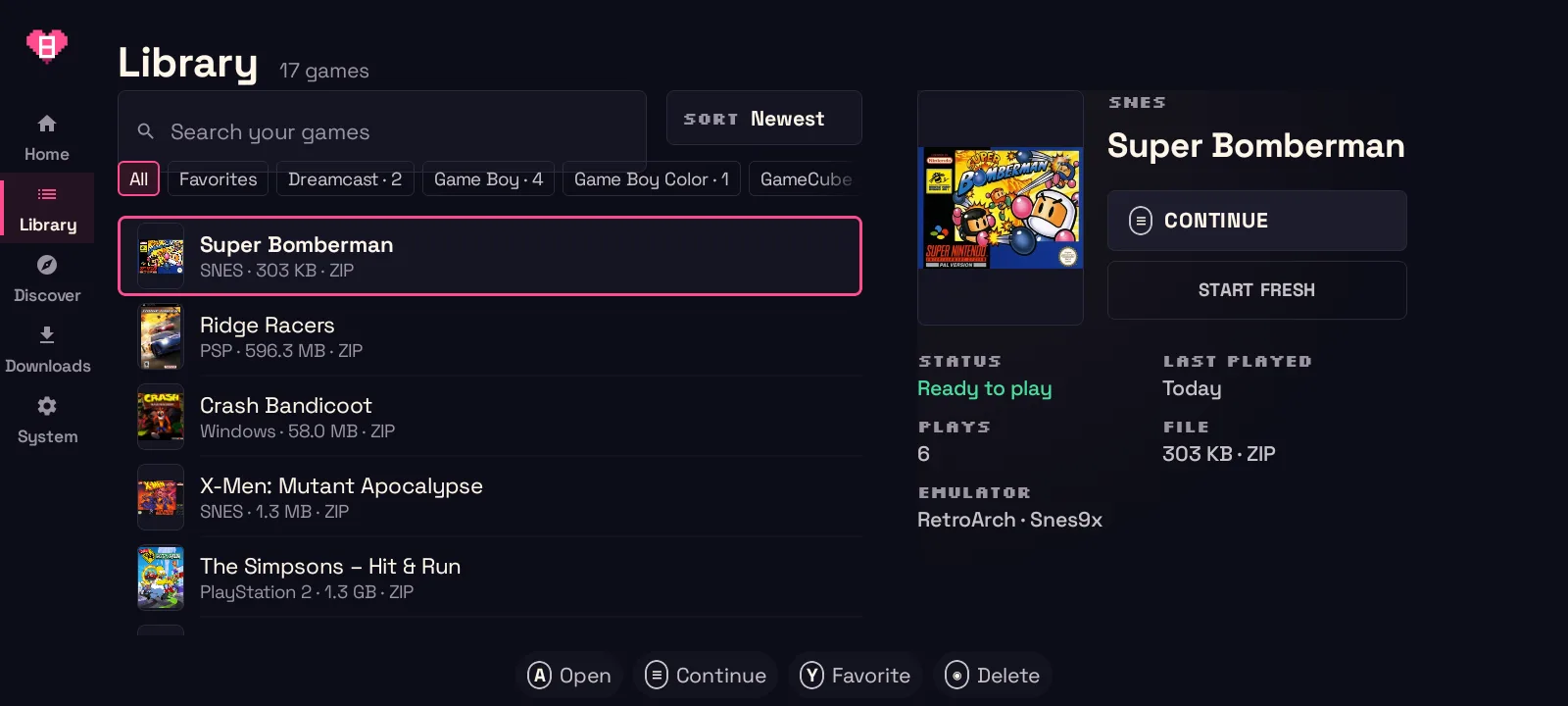
GameBEX scans two kinds of folders:
- Its own folder:
GameBEX/<system>/on the SD card (orDownload/GameBEX/<system>/in internal storage when there’s no card). Use the exact folder names from Supported systems. - Your folders: add any existing collection under System → Device → Game
folders. GameBEX reads ES-DE-style
<root>/<system>/layouts and understands common alternative names (megadrive,ps1,dc, …).
Press the rescan button shown in the hint strip on the Library or System
screen after copying new games. Titles are cleaned up for display (tags such as (USA), (Rev 1), or [!]
are hidden) without renaming your files.
Covers
Section titled “Covers”Cover art is optional. GameBEX can fetch covers from ScreenScraper. An optional free ScreenScraper account (you can sign in from a game’s page) gives better results. Games without art still show their titles.
Finish Setup, then Play
Section titled “Finish Setup, then Play”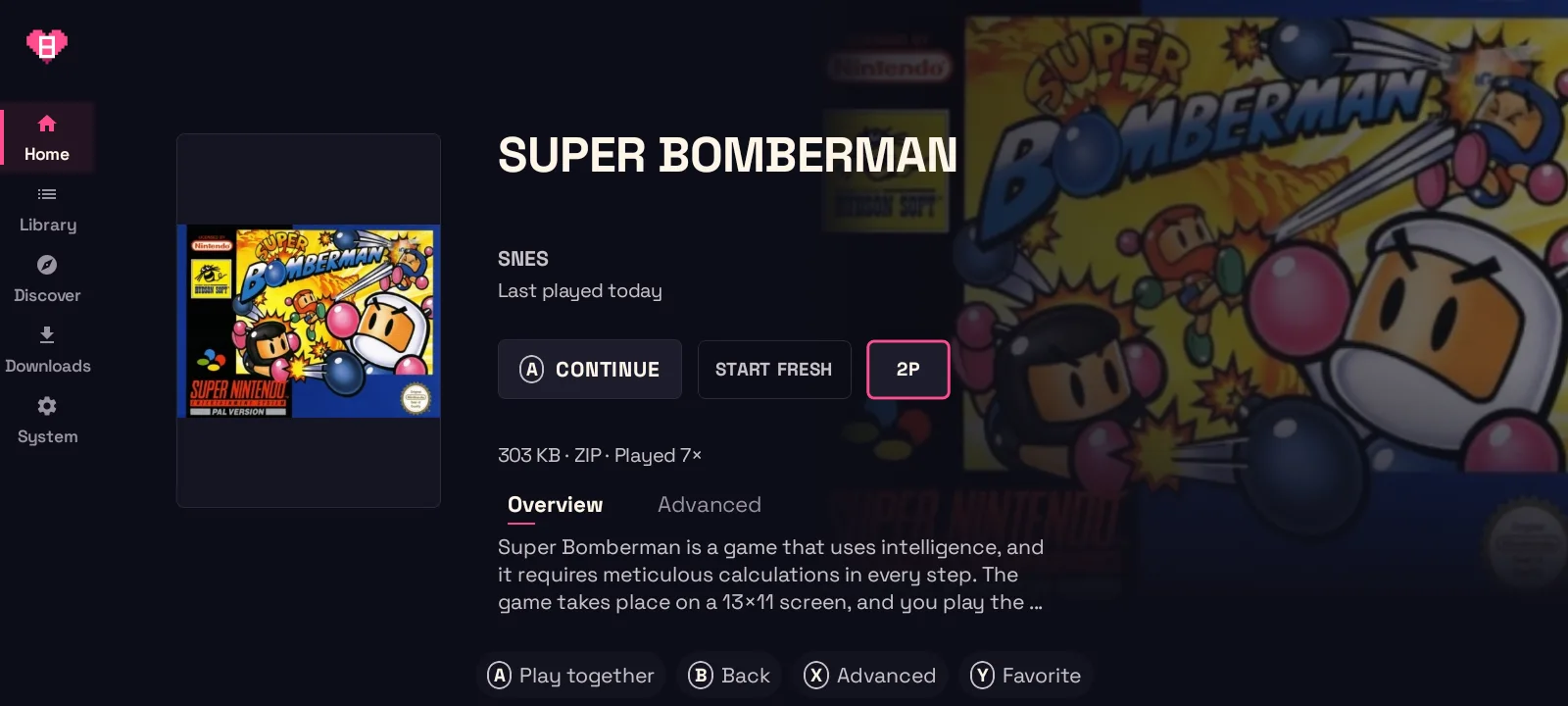
Each game page shows one primary action:
- Play means everything is in place.
- Finish Setup means something is missing, and the page lists what. One press
runs the setup steps GameBEX supports, then starts the game:
- BIOS: some systems need firmware. GameBEX checks the files you’ve placed against known checksums and lists what’s missing. Pressing Finish Setup is your explicit go-ahead to fetch missing files; GameBEX never fetches firmware silently. (Read Legal first.)
- Disc prep: archives are extracted, cue/gdi/m3u sheets are checked, and multi-disc games get a playlist. See Formats & disc prep.
Emulators are installed from the System screen, and RetroArch cores are downloaded automatically the first time a game needs one (from the official Libretro buildbot, checksum-pinned after the first download).
If a required file or preparation step is still missing, the page tells you what to do.
Plugins (optional)
Section titled “Plugins (optional)”GameBEX ships with no catalog, so Discover stays empty until you import a plugin, a JSON file that describes a compatible ROM site’s catalog, under System → Device → Game sources → Import source. Once it’s in, you can browse that site, download a game with one press, and let Finish Setup prepare what arrives. Plugins are data only and never install or update themselves. They can only reach the domains they declare. Your local library, BIOS files, and emulators work without one.
Source plugins covers importing, the domain list each plugin declares, and a prompt that gets a coding agent to write one for you. See also Writing a source and Legal.
Next steps
Section titled “Next steps”- Set up your controller in every emulator: Controllers.
- Play a game with a second phone on your Wi-Fi, over netplay, a Game Boy link, PSP ad hoc, or a stream from one phone to the other: Play together.
- Something not working? Troubleshooting & FAQ.